How to Center Elements in CSS: Modern Techniques That Actually Work

Centering looks like a small task, but it touches the core of CSS layout: how boxes are sized, how their parents create space, and how alignment works in different formatting contexts. The good news is that modern CSS gives us a short set of reliable tools. Once you understand where each one belongs, you can center elements in CSS without fragile hacks or trial-and-error fixes.
Start with the parent, not the child
Before choosing a property, ask one question: who controls the available space? In most cases, the parent is the right place to start. A parent can become a flex container, a grid container, or a positioned reference point, and those choices determine how children behave.
This matters because centering is not a single visual operation. Horizontal centering usually means placing a box within the inline axis of its parent. Vertical centering means placing it within the block axis. The two axes can be handled together when the parent has a clear layout model.
A useful default is to give the parent a defined height or a minimum height when vertical centering should be visible. If a parent collapses to the height of its content, there is no extra space to center within. That is why a centered hero often needs min-height: 100vh or a container height tied to the design.
Use flexbox for one-dimensional centering
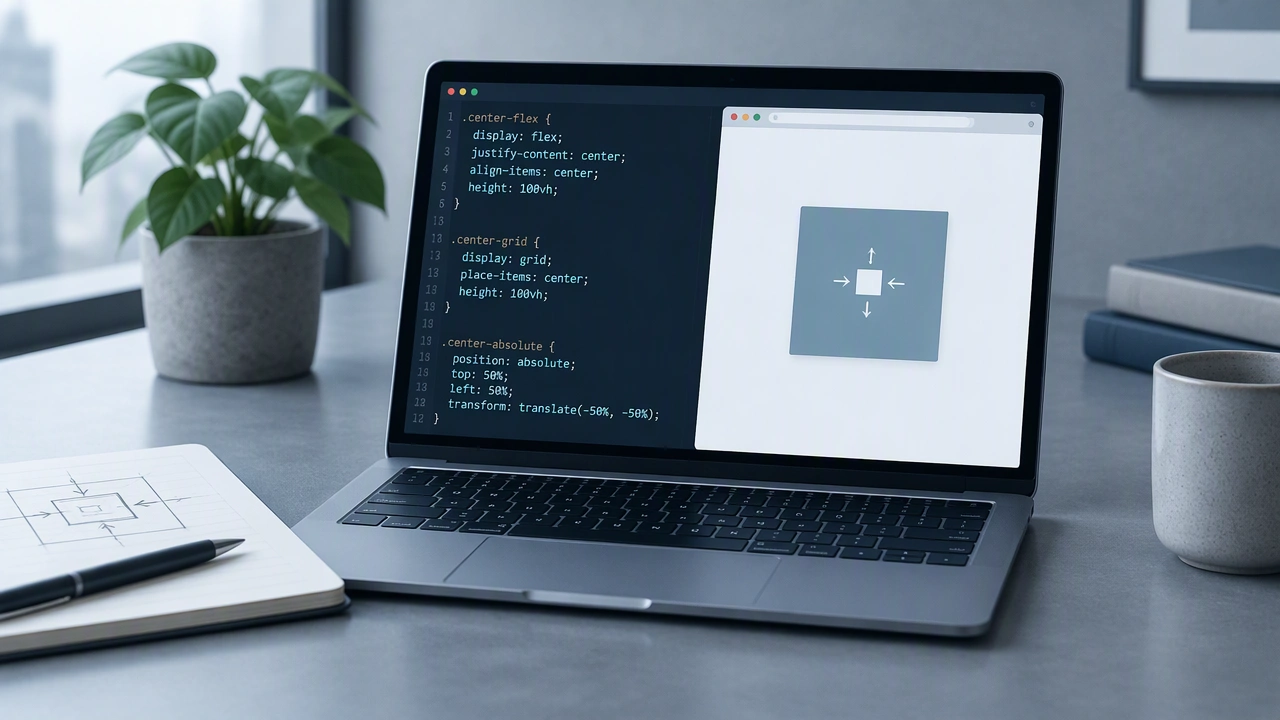
Flexbox is the most direct answer for many interfaces. When a parent is a flex container, you can align its children along both axes with a few properties.
The pattern is simple: make the parent a flex container, center the main axis, and center the cross axis. For a row, justify-content: center handles horizontal placement and align-items: center handles vertical placement. For a column, the two properties switch roles.
Flexbox is especially useful when the centered item should participate in normal layout flow. It works well for buttons, navigation groups, cards, toolbars, and page sections. It also remains predictable when the content changes size, because flexbox distributes space according to the container and the items.
One important detail is that flex centering works on the direct children of the flex container. If the element you want to center is nested deeper, either apply flexbox to the correct parent or use a wrapper that represents the layout relationship clearly.
Use grid for simple, precise centering
CSS Grid can center an item with even less ceremony. A single-cell grid can place its child at the center of both axes.
This approach is ideal when the parent is already a grid or when you want alignment rules to remain close to the container. Grid also makes it easy to center within a more complex structure. You can define columns and rows, then use alignment properties on the grid item itself.
A common misconception is that grid is only for large page layouts. In practice, it is excellent for local composition: a media object, a modal shell, an empty state, or a control that must sit in the middle of a defined area. Grid gives you a clear model for both axes without requiring the child to know about its siblings.
Center an element inside its own box
Sometimes the element is not a sibling in a layout. It is a child that must appear in the middle of its own container, such as a label inside a badge or text inside a fixed-size tile. For that case, combine inline and block alignment on the element itself.
Modern CSS offers margin: auto as a practical centering tool in flex and grid contexts. When a flex or grid item has auto margins, the remaining free space is distributed equally. This can center an item without changing the alignment properties of the container.
Another useful technique is to treat the child as an inline-level box inside a text-align context. The parent can use text-align: center, while the child receives vertical placement through line height, flexbox, or grid depending on the structure. This is helpful for short text and simple controls, but it becomes less suitable for complex content.
Positioning still has a place
Absolute positioning remains valid when an element must be removed from normal flow and placed relative to a specific box. Set the parent to position: relative, position the child absolutely, and use offsets together with transforms to place its center at the desired point.
This technique is useful for overlays, markers, and decorative elements. It is less ideal for content that should participate in document flow, because an absolutely positioned element no longer affects the size of its parent. Use it when the design truly calls for an overlay rather than as the first choice for ordinary layout.
Choose the technique by context
There is no single best property for every situation. The reliable approach is to match the tool to the layout problem.
- Flexbox is a strong default for one-dimensional groups and content that should respond naturally to changing sizes.
- Grid is excellent for a defined area, especially when the parent already has a grid structure.
- Auto margins are useful for centering a single item inside flex or grid without changing the container’s alignment rules.
- Absolute positioning is appropriate for overlays and elements that must be detached from normal flow.
Avoid the common traps
Centering fails most often when the container has no measurable space to distribute. Check for collapsed heights, missing minimum heights, and parent elements whose display type does not support the alignment you expect. Also check whether a wrapper is creating an extra layout level that changes the axis you are targeting.
Another trap is confusing content alignment with box alignment. Text can be centered with text-align, but that does not center a block vertically. Similarly, a transform can move an element visually, but it does not change the layout space around it. Knowing the difference prevents solutions that appear correct in one viewport and break in another.
Finally, prefer properties that describe intent. Flexbox and grid explain how space should be distributed, while transforms and offsets describe a particular visual position. The first approach is easier to maintain when content, breakpoints, or component structure changes.
Build a reliable centering habit
The practical workflow is short. Identify the parent that owns the space, choose flexbox or grid for normal layout, confirm that the parent has enough height for vertical alignment, and use positioning only when the element must leave the flow. Test the result with longer content and narrower viewports, because centering should remain stable as the page changes.
With this model, centering stops being a collection of tricks. It becomes a small, predictable part of CSS layout: choose the formatting context, define the available space, and let alignment properties do the work.