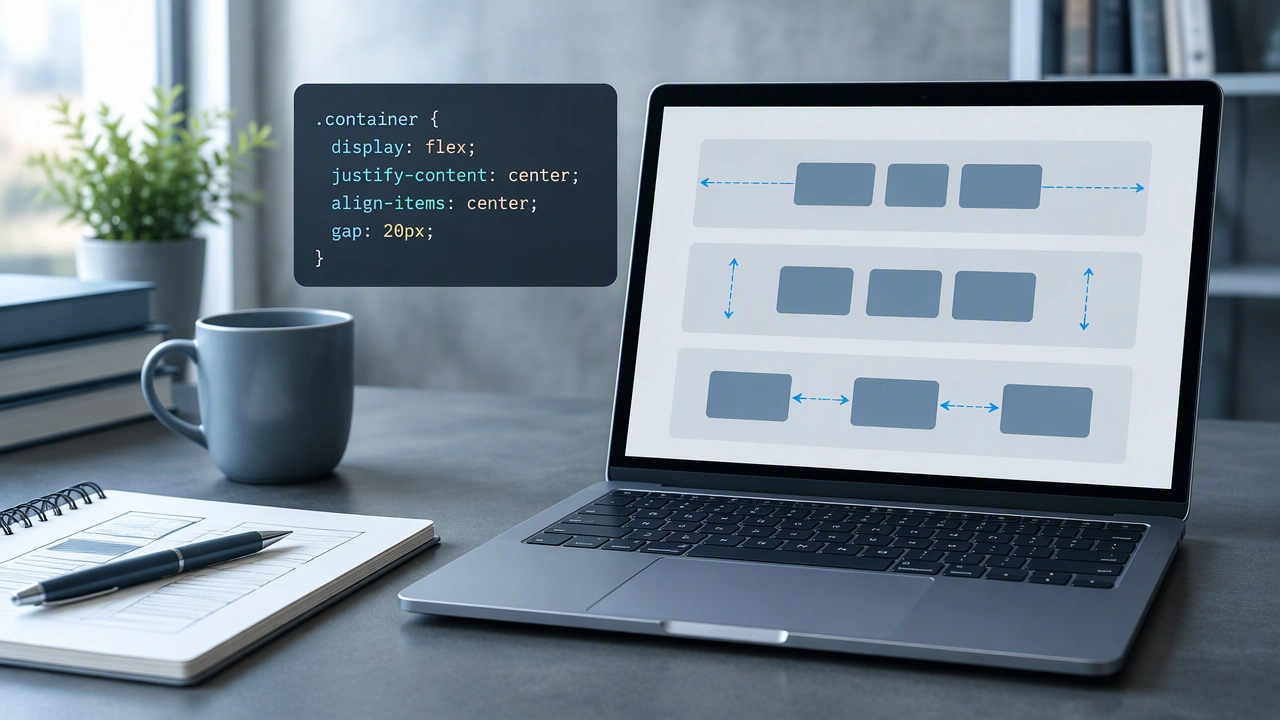
Flexbox Alignment: Master justify-content, align-items, and gap

Flexbox gives you a clear way to decide how items sit along the main and cross axes of a container. This CSS layout guide focuses on three properties that solve most alignment problems: justify-content, align-items, and gap. Used together, they create predictable spacing without extra wrappers, brittle margins, or complicated positioning.
Start with the axes
Every flex container has a main axis and a cross axis. The main axis follows flex-direction. With the default row value, it runs horizontally from left to right. With column, it runs vertically from top to bottom. The cross axis runs perpendicular to the main axis.
This distinction matters because justify-content controls space on the main axis, while align-items controls alignment on the cross axis. If you mix those up, a setting can appear to do nothing. For example, justify-content: center will not vertically center a row of items; align-items: center will.
Before adjusting values, confirm the container is actually a flex container and check its direction:
- display: flex; creates the flex formatting context.
- flex-direction: row; makes the main axis horizontal.
- flex-direction: column; makes the main axis vertical.
Use justify-content for the main axis
The justify-content property distributes free space among flex items along the main axis. It is useful when the items do not fill the entire line or when you want to control how leftover space is shared.
Common justify-content values
- flex-start: packs items toward the beginning of the main axis.
- center: centers the group as a whole along the main axis.
- flex-end: packs items toward the end of the main axis.
- space-between: places equal space between items, with no extra space at the edges.
- space-around: gives each item equal space on both sides, so edge gaps look half as wide as inner gaps.
- space-evenly: creates equal gaps everywhere, including the outer edges.
Choose the value that matches the visual rule you want. For a toolbar with one group at each end, use justify-content: space-between. For a centered navigation row, use center. For a gallery where edge spacing should match internal spacing, use space-evenly.
Keep in mind that justify-content does not stretch the items themselves. If an item should fill remaining space, use flex grow through the flex property instead.
Use align-items for the cross axis
The align-items property controls how items are positioned across the cross axis. It can align items to the start, center, end, or stretch them to fill the available cross-axis space.
Common align-items values
- stretch: makes items fill the container’s cross size, which is the default for many flex layouts.
- flex-start: aligns items to the top of a row container or the start of a column container.
- center: centers items along the cross axis.
- flex-end: aligns items to the bottom or end of the cross axis.
- baseline: aligns items by their text baselines, which is helpful for mixed font sizes.
For a card row with different content lengths, align-items: flex-start keeps each card’s top edge aligned while allowing heights to remain natural. Use stretch when cards should share the same height. Use baseline when labels of different sizes need to read as one line.
Use gap for consistent spacing
The gap property sets the space between flex items without adding space before the first item or after the last. It replaces many margin hacks and keeps spacing consistent when items wrap.
You can set one value for all gaps or separate values for row and column spacing:
- gap: 16px; uses the same spacing in both directions.
- gap: 12px 24px; uses 12px between rows and 24px between columns.
Gap works with wrapping, so a responsive grid of cards keeps even spacing across multiple lines. Unlike justify-content, gap does not distribute leftover space. It only defines the distance between adjacent items. That makes it a reliable companion to justify-content rather than a replacement.
Combine the three properties
Alignment becomes easier when you decide each property’s job before writing CSS:
- justify-content decides where the group sits or how free space is distributed on the main axis.
- align-items decides how individual items line up on the cross axis.
- gap defines the minimum spacing between items.
For example, a centered navigation bar can use justify-content: center to place the group in the middle, align-items: center to align labels vertically, and gap: 24px to keep links evenly separated. A product grid can use justify-content: space-between to spread cards across a row, align-items: start to keep cards top-aligned, and gap: 20px to maintain consistent gutters.
Handle wrapping and responsive behavior
When flex-wrap: wrap is enabled, items can move to new lines. justify-content then applies to each line, while gap controls spacing within each line. This combination is useful for responsive toolbars and card collections.
Test narrow and wide viewports. A value that looks perfect at desktop width may create awkward gaps on a phone. In many cases, a smaller gap and a simpler justify-content value work better on small screens. Media queries can adjust these values without changing the structure of the page.
Debug alignment step by step
If an alignment rule seems ignored, check the container first. Confirm display: flex, verify flex-direction, and make sure the element you are styling is the direct parent of the items. Then inspect whether an item has a fixed width, a conflicting margin, or a transform that changes its visual position.
Also remember that align-self and justify-self can override container defaults for a single item. justify-self is supported in flex layout in modern browsers, but container-level justify-content remains the clearest way to manage the whole group.
Conclusion
Flexbox alignment becomes straightforward when you separate the main axis from the cross axis. Let justify-content manage distribution along the main axis, let align-items control cross-axis positioning, and use gap for dependable spacing between items. This flexbox alignment justify content align items guide gives you a repeatable method for building clean, responsive interfaces without fragile layout tricks.